CAD Build & Update Automation
Automated the deployment of scattered CAD build files across 120+ engineering workstations using Inno Setup packaging and JumpCloud MDM push commands.
The Problem
As part of the IT team, I work with various CAD builds depending on client requirements. Initially, the process was straightforward — clients would send an executable file to install their required build on AutoCAD or MicroStation, and I could deploy it quickly.
Then came the updates. Instead of a clean installer, clients started sending scattered files — dozens of them — each requiring manual placement in specific system directories. Configuration files here, DLLs there, templates somewhere else. A single update could involve 10+ different folder locations across the C: drive.
A typical "update" from the client looked like this:
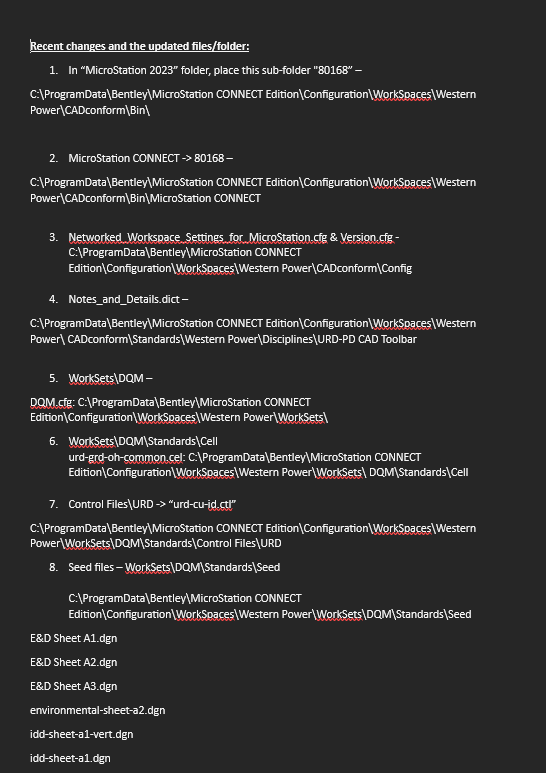
Paths like C:\ProgramData\Bentley\MicroStation CONNECT Edition\Configuration\WorkSpaces\... — and there were eight different destination folders for this one update alone.
Critical Issues Identified
Time Consumption
Every machine needed individual attention. With 120+ devices, even a "quick" update became a multi-day project.
Engineer Downtime
Engineers sat idle while workstations were manually updated. Billable hours lost.
Priority Diversion
IT priorities derailed. Every update cycle meant dropping whatever else was on the plate.
The Solution
The following pipeline replaced the entire manual workflow.
Step 1: Custom Executables with Inno Setup
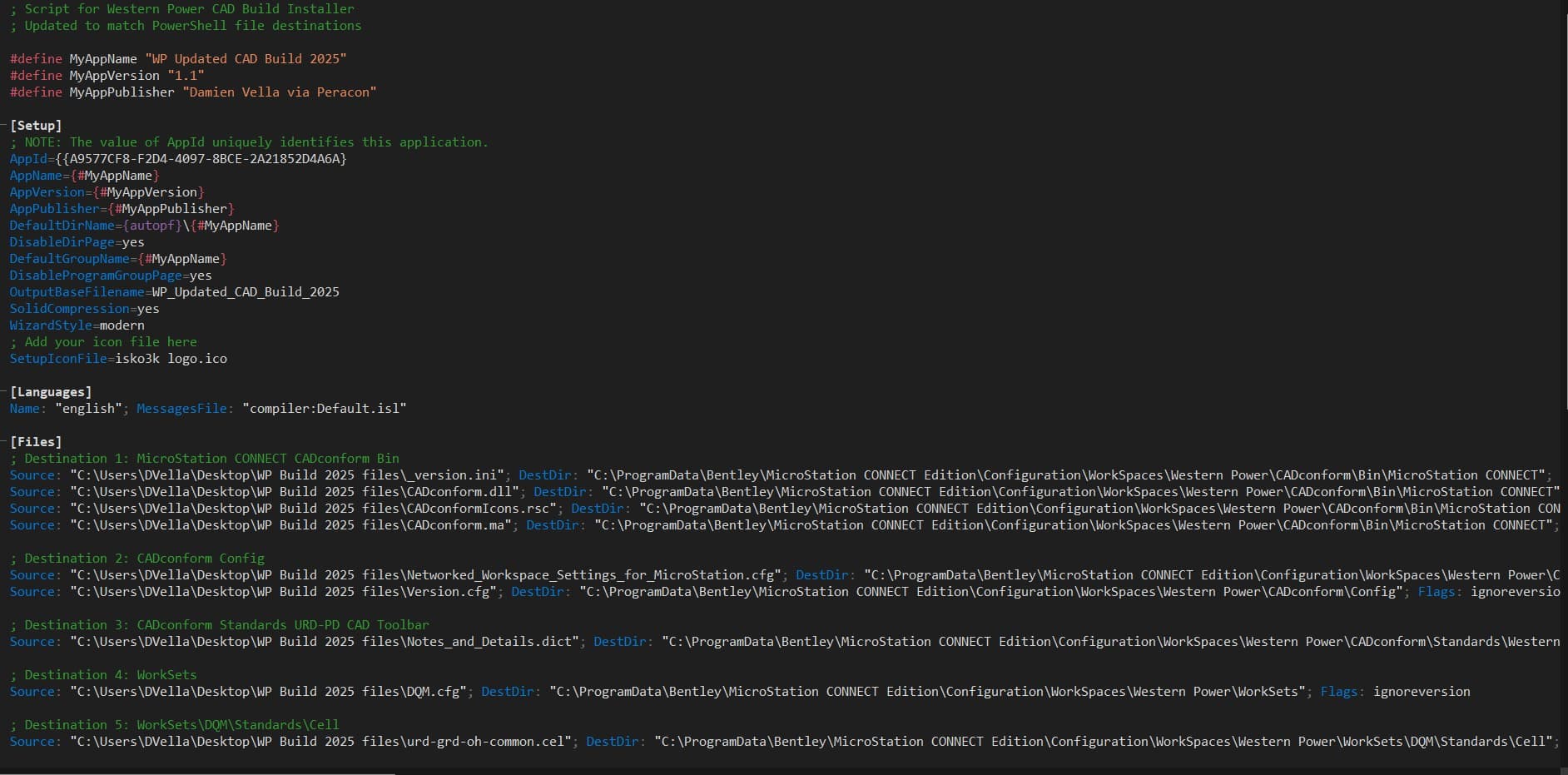
Instead of manually placing files across a dozen locations, I use Inno Setup Compiler to create a custom installer. Every scattered file is packaged with precise destination instructions baked in. Variable changes, .cfg modifications, registry tweaks — all handled automatically.
; Script for Western Power CAD Build Installer
; Updated to match PowerShell file destinations

#define MyAppName "WP Updated CAD Build 2025"
#define MyAppVersion "1.1"
#define MyAppPublisher "Damien Vella via Peracon"

[Setup]
AppId={{A9577CF8-F204-4097-88CE-2A21852D4A6A}
AppName={#MyAppName}
AppVersion={#MyAppVersion}
AppPublisher={#MyAppPublisher}
DefaultDirName={autopf}\{#MyAppName}
DisableDirPage=yes
DefaultGroupName={#MyAppName}
DisableProgramGroupPage=yes
OutputBaseFilename=WP_Updated_CAD_Build_2025
SolidCompression=yes
WizardStyle=modern
SetupIconFile=isko3k logo.ico

[Languages]
Name: "english"; MessagesFile: "compiler:Default.isl"

[Files]
; Destination 1: MicroStation CONNECT CADconform Bin
Source: "...\WP Build 2025 files\_version.ini"; \
  DestDir: "C:\ProgramData\Bentley\MicroStation CONNECT Edition\Configuration\WorkSpaces\Western Power\CADconform\Bin\MicroStation CONNECT Edition"
Source: "...\WP Build 2025 files\CADconform.dll"; \
  DestDir: "C:\ProgramData\Bentley\...\CADconform\Bin\MicroStation CONNECT Edition"
Source: "...\WP Build 2025 files\CADconformMicros.rsc"; \
  DestDir: "C:\ProgramData\Bentley\...\CADconform\Bin\MicroStation CONNECT Edition"
Source: "...\WP Build 2025 files\CADconform.ma"; \
  DestDir: "C:\ProgramData\Bentley\...\CADconform\Bin\MicroStation CONNECT Edition"

; Destination 2: CADconform Config
Source: "...\Networked_Workspace_Settings_for_MicroStation.cfg"; \
  DestDir: "...\Western Power\CADconform\Config"
Source: "...\Version.cfg"; \
  DestDir: "...\Western Power\CADconform\Config"; Flags: ignoreversion

; Destination 3: CADconform Standards
Source: "...\Notes_and_Details.dict"; \
  DestDir: "...\Western Power\CADconform\Standards\Western Power"

; Destination 4: WorkSets
Source: "...\DQM.cfg"; \
  DestDir: "...\Western Power\WorkSets"; Flags: ignoreversion

; Destination 5: WorkSets\DQM\Standards\Cell
Source: "...\urd-grd-oh-common.cel"; \
  DestDir: "...\Western Power\WorkSets\DQM\Standards\Cell"
Each [Files] entry maps a source file to its exact destination. The ignoreversion flag ensures files are always replaced, eliminating version conflicts.
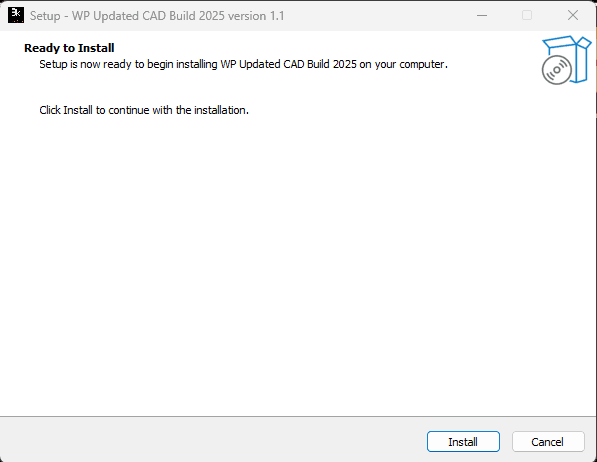
The end result: a clean WP_Updated_CAD_Build_2025.exe that handles everything in seconds.
Step 2: JumpCloud Push Commands + PowerShell
With the installer built, the next step is getting it onto 120+ machines without touching any of them. JumpCloud serves as the SaaS MDM platform. The mechanism: Push Commands.
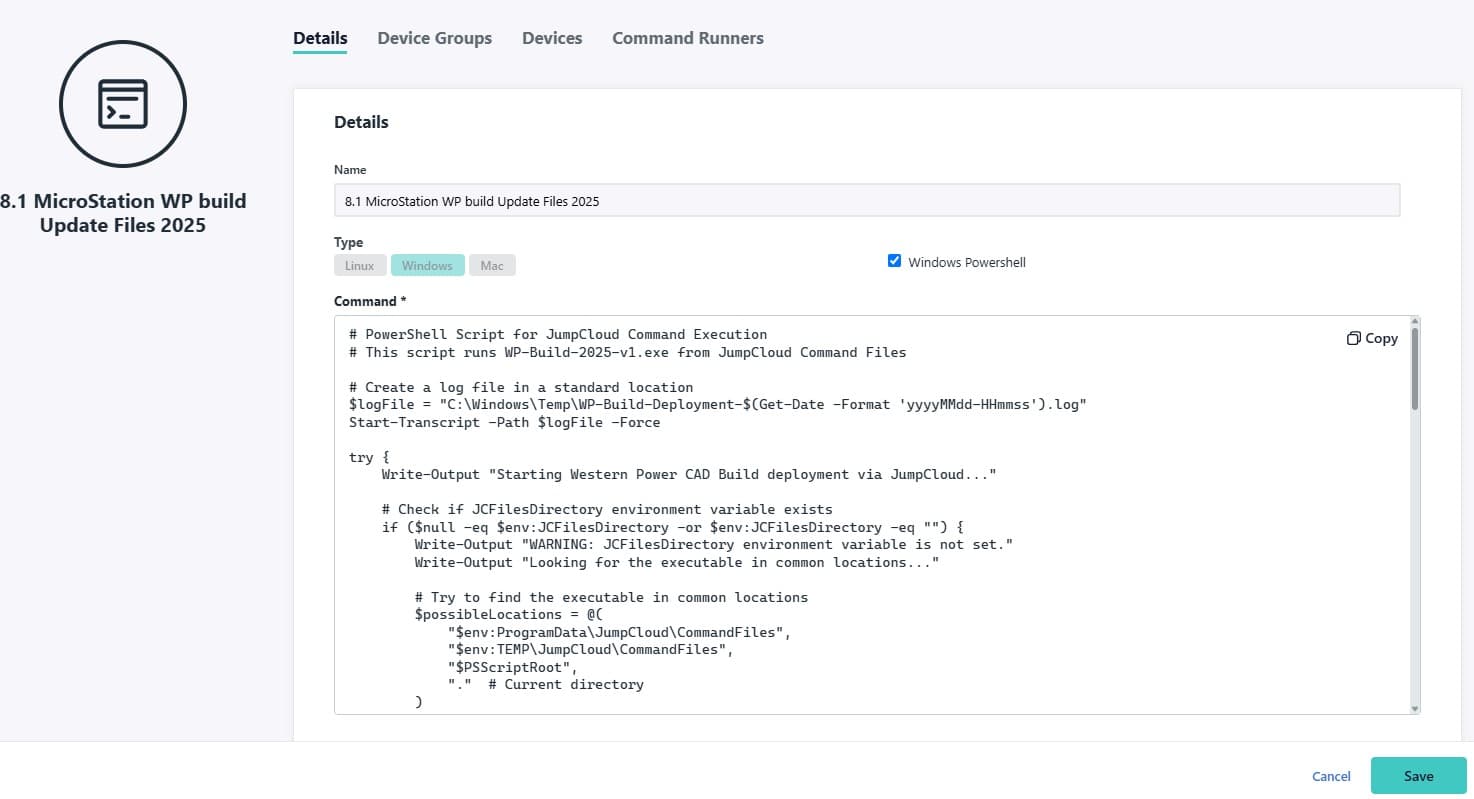
A custom PowerShell script is executed remotely by JumpCloud on targeted workstations. The script handles everything:
# PowerShell Script for JumpCloud Command Execution
# This script runs WP-Build-2025-v1.exe from JumpCloud Command Files

# Create a log file in a standard location
$logFile = "C:\Windows\Temp\WP-Build-Deployment-$(Get-Date -Format 'yyyyMMdd-HHmmss').log"
Start-Transcript -Path $logFile -Force

try {
    Write-Output "Starting Western Power CAD Build deployment via JumpCloud..."

    # Check if JCFilesDirectory environment variable exists
    if ($null -eq $env:JCFilesDirectory -or $env:JCFilesDirectory -eq "") {
        Write-Output "WARNING: JCFilesDirectory environment variable is not set."
        Write-Output "Looking for the executable in common locations..."

        # Try to find the executable in common locations
        $possibleLocations = @(
            "$env:ProgramData\JumpCloud\CommandFiles",
            "$env:TEMP\JumpCloud\CommandFiles",
            "$PSScriptRoot",
            "."  # Current directory
        )

        $exePath = $null
        foreach ($location in $possibleLocations) {
            $testPath = Join-Path $location "WP-Build-2025-v1.exe"
            if (Test-Path $testPath) {
                $exePath = $testPath
                Write-Output "Found executable at: $exePath"
                break
            }
        }
    } else {
        $exePath = Join-Path $env:JCFilesDirectory "WP-Build-2025-v1.exe"
    }

    if (-not $exePath -or -not (Test-Path $exePath)) {
        throw "Executable not found in any expected location."
    }

    # Execute the installer silently
    Write-Output "Executing: $exePath /VERYSILENT /SUPPRESSMSGBOXES /NORESTART"
    $process = Start-Process -FilePath $exePath \
        -ArgumentList "/VERYSILENT /SUPPRESSMSGBOXES /NORESTART" -Wait -PassThru
    Write-Output "Installation completed with exit code: $($process.ExitCode)"
}
catch {
    Write-Output "ERROR: $_"
    exit 1
}
finally {
    Stop-Transcript
}
Script Behavior
- >Creates timestamped logs at
C:\Windows\Temp\for post-deployment verification - >Validates the
JCFilesDirectoryenvironment variable before execution - >Locates the executable in JumpCloud's command files directory with fallback paths
- >Executes silently with
/VERYSILENT— users never see a thing
Step 3: Scheduled Background Rollout
The final piece: timing. Rollouts are scheduled during non-productive hours — lunch breaks, end of day, weekends. JumpCloud queues the command, and when machines check in, they execute the update silently in the background. Engineers return from lunch to updated workstations without ever knowing IT was involved.
Results
Summary
Transitioning from manual file-copying to a centralized MDM pipeline reduced a multi-day process to a background task. The result is a repeatable, error-free deployment cycle that reclaims IT hours for higher-priority work while keeping engineers productive.
Automate the Repetitive
Upfront time investment in automation pays for itself within the first deployment cycle.
Leverage MDM Beyond Basics
JumpCloud's push commands support far more than basic device management. The platform is capable of complex deployment workflows.
Silent Deployments Win
Effective IT operations are invisible. Users expect systems to work without interruption.
Logging is Non-Negotiable
PowerShell transcripts verify every deployment without requiring physical access to each machine.